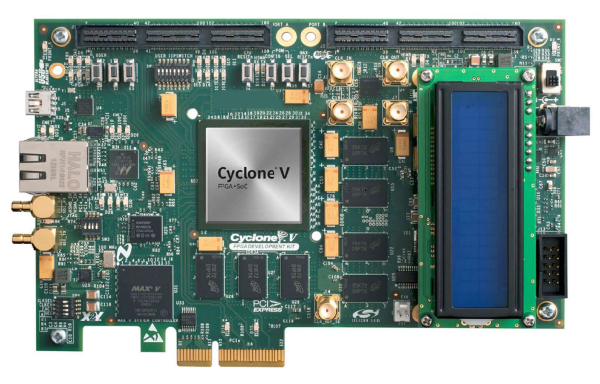
VxWorks 6.x on Xilinx ML403: BSP and Flash Boot Guide
Running VxWorks 6.x on the Xilinx ML403 Evaluation Platform provides a practical example of integrating a real-time operating system with an FPGA-based embedded design. The workflow combines hardware-system configuration, board support package (BSP) customization, kernel image generation, bootloader programming, and standalone boot validation.
This guide follows the legacy toolchain and configuration approach described in Xilinx Application Note XAPP947. The target platform uses a Xilinx Virtex-4 FX FPGA with a PowerPC 405 processor, while the development environment combines Xilinx Platform Studio (XPS) with Wind River Workbench.
Although the ML403, VxWorks 6.x, and associated development tools are legacy technologies, the underlying workflow remains instructive for developers maintaining PowerPC-based embedded systems and FPGA platforms.
The examples below retain the addresses and configuration values from the supplied procedure. Verify them against the actual hardware design, BSP, flash layout, and VxWorks release before applying them to a target.
🚀 Overview and System Architecture #
The ML403 design combines an embedded processor, memory, communication interfaces, and programmable logic. XPS is used to configure the hardware system, while Wind River Workbench manages the VxWorks software build and debugging workflow.
The overall process consists of six stages:
- Configure the hardware platform in XPS.
- Generate and customize the VxWorks BSP.
- Build the VxWorks kernel image.
- Create and program the bootloader.
- Configure standalone boot through flash.
- Load and validate the VxWorks kernel.
The key architectural distinction is between the FPGA hardware configuration, the bootloader stored in flash, and the VxWorks kernel image loaded during startup. Each stage must be configured consistently for the complete boot process to work.
Hardware and Software Requirements #
The original setup uses the following hardware and software components:
- Target board: Xilinx ML403 Evaluation Board, based on a Virtex-4 FX FPGA with a PowerPC 405 processor.
- Hardware development tools: Xilinx Platform Studio 10.1i and ISE 10.1i.
- VxWorks development environment: Wind River Workbench 2.5.
- Debugging hardware: Wind River ICE/Probe with a compatible JTAG adapter.
- Communication interfaces: RS-232 serial connection and Ethernet.
- Host utilities: Terminal software, FTP server, and flash-programming tools.
- Licensing: The original procedure lists a Wind River multicore-debugging license; confirm the specific license requirements for the actual toolchain and debugging configuration.
The exact tool versions matter because legacy BSP generators, FPGA tools, and Wind River development environments may not be interchangeable with newer releases.
🛠️ Step 1: Build the Base Hardware System in XPS #
The first task is to create the embedded hardware system using Xilinx Base System Builder in XPS.
The original design includes the following components:
| Component | Purpose |
|---|---|
| PowerPC 405 | Executes the VxWorks kernel and applications |
| DDR SDRAM through MPMC | Provides main system memory |
| GPIO | Interfaces with LEDs and push buttons |
| UART 16550 | Provides serial console input and output |
| Tri-Mode Ethernet MAC (TEMAC) | Provides Ethernet connectivity |
| XPS MCH EMC | Provides the flash-memory interface |
| On-chip BRAM | Stores the initial boot application |
Configure the Hardware Platform #
Create the hardware design in XPS and add the required processor, memory, and peripheral components. Define the address map so that each device occupies the expected memory region and the processor can access it correctly.
Configure the UART for the intended RS-232 console and include the Ethernet MAC if network-based kernel loading will be used.
After verifying the peripheral connections and address assignments, generate the FPGA bitstream.
The generated bitstream defines the hardware configuration that will be programmed into the FPGA. It does not, by itself, provide the complete VxWorks software boot chain; the BSP, bootloader, and kernel image must also be built and configured.
🧩 Step 2: Create and Customize the VxWorks BSP #
The BSP connects the VxWorks kernel to the target hardware. It contains board-specific initialization, memory configuration, interrupt handling, and device support.
The original procedure generates a VxWorks BSP from the XPS hardware design and then modifies it to match the target’s memory map and boot arrangement.
Generate the Initial BSP #
In the XPS software platform settings:
- Select
vxworks6_3as the operating system. - Configure standard input and standard output to use the RS-232 UART.
- Include the UART and Ethernet MAC in the connected peripherals list.
- Generate the BSP.
- Copy the generated BSP into a separate working directory, such as
modified_vxworks_bsp.
Keeping a separate working copy makes customizations easier to track and reduces the risk of losing changes when regenerating the original BSP.
Update Memory Configuration #
The supplied procedure identifies the following memory-related definitions in config.h and Makefile:
#define ROM_BASE_ADRS  0xFF000000
#define ROM_TEXT_ADRS  (ROM_BASE_ADRS + 0x100)
#define RAM_LOW_ADRS   0x00010000
#define RAM_HIGH_ADRS  0x00C00000
These values describe the intended ROM and RAM layout in the example. Their exact representation and use depend on the generated BSP and the conventions of the selected VxWorks release.
Before using them, confirm that:
- The flash device is mapped at the expected processor address.
- The bootloader entry address matches the flash layout.
- The RAM region does not overlap reserved memory or other hardware regions.
- The kernel image fits within the available RAM.
- The BSP’s linker and boot-image settings are consistent with these addresses.
Do not copy these values into a different board design without validating its memory map.
Configure the Network Identity #
The original procedure also identifies two BSP source files for customization:
sysNet.c: Update the Ethernet MAC address to match the target interface.sysLib.c: Optionally customize the board model string.
Use a valid, unique MAC address assigned for the target environment. Confirm that the network initialization code and the hardware design agree on the Ethernet interface being initialized.
🔨 Step 3: Build the VxWorks Kernel Image #
Once the BSP is configured, use Wind River Workbench to create a VxWorks Image Project.
Configure the Image Project #
- Create a new VxWorks Image Project.
- Select the customized BSP.
- Choose the toolchain supported by the project, such as
sfgnuorsfdiab, as specified in the original setup. - Configure the required kernel components, including the WDB agent and kernel shell where needed.
- Build the project to generate the
vxWorkskernel image.
The exact component names and toolchain availability depend on the installed VxWorks release and development environment. Use the components supplied with the actual installation rather than assuming that all configurations support identical options.
Load the FPGA Design and Kernel #
After building the kernel:
- Use XPS to download the generated bitstream to the ML403.
- Connect the Wind River ICE/Probe to the target through JTAG.
- Establish a debugging connection.
- Download the kernel image to the target’s configured RAM location.
This stage validates the hardware configuration, processor startup, memory accessibility, and basic kernel execution before introducing flash-based standalone boot.
A successful JTAG download is an important checkpoint: it helps distinguish hardware and kernel problems from bootloader or flash-configuration errors.
💾 Step 4: Build and Program the Bootloader #
The bootloader provides the startup path that prepares the target and transfers control to the VxWorks kernel. For standalone operation, the bootloader must be stored in flash and located at an address consistent with the board’s startup configuration.
Create the Boot Loader Project #
In Workbench:
- Create a new VxWorks Boot Loader Project using the customized BSP.
- Select the uncompressed image format.
- Configure the output as a binary file.
- Build the project to generate
bootrom_uncmp.bin.
The generated file is the bootloader binary used by the original procedure. Confirm the image format and load address expected by the BSP before programming it.
Configure Flash Programming #
The original procedure uses the following flash-programming parameters:
| Parameter | Value |
|---|---|
| Flash base address | 0xFF000000 |
| File address offset | 0xFF000100 |
| Flash device | Intel 28F320Jx, two devices |
Use the On-Chip Debug (OCD) Flash Programmer in Workbench to program the bootloader.
The file address offset of 0xFF000100 corresponds to the example’s ROM text address, which is 256 bytes beyond the flash base. Verify that the programmer interprets the address fields as expected and that the selected flash configuration matches the actual board.
After programming, verify the operation using the available flash-programming tools. An apparently successful write is not sufficient if the data was placed at an incorrect address or the flash geometry was configured incorrectly.
⚙️ Step 5: Configure Standalone Boot #
The supplied workflow uses a small BRAM-resident application named VxWorks_Start to transfer control to the bootloader in flash.
This separates the FPGA’s initial startup path from the larger bootloader and kernel images.
Configure the BRAM Startup Application #
The example uses the following flash address in the startup application:
#define BOOTLOADER_ADDRESS 0xFF000100The startup code must branch to the correct bootloader entry point using the processor and toolchain conventions required by the project.
After updating the address:
- Rebuild the BRAM-based startup application.
- Update the FPGA bitstream to include the application.
- Program the FPGA using Xilinx iMPACT.
- Configure the board’s boot switches for flash boot.
- Power-cycle or reset the board and observe the serial console.
The exact boot-switch settings depend on the board configuration. Follow the ML403 documentation for the required startup mode.
Validate the Boot Chain #
During startup, verify that the BRAM application executes and transfers control to the flash-resident bootloader.
If the boot prompt does not appear, investigate the stages in order:
- Confirm that the FPGA was programmed with the intended bitstream.
- Verify that the startup application uses the correct flash address.
- Confirm the flash contents and programming offset.
- Check the processor’s startup mode and reset behavior.
- Verify the UART connection and serial-terminal configuration.
This staged diagnosis is more effective than changing BSP settings, flash addresses, and hardware configuration simultaneously.
🌐 Step 6: Load and Start the VxWorks Kernel #
After standalone boot is working, configure the bootloader to load the VxWorks kernel image over Ethernet using FTP.
The supplied example uses these network settings:
| Device | IP address |
|---|---|
| Host PC | 192.168.0.1 |
| ML403 target | 192.168.0.2 |
Place the built vxWorks image in the FTP server’s configured directory and ensure that the host and target can communicate over the intended network.
These addresses are example values for an isolated development network. Confirm that they do not conflict with other devices and adapt them to the actual network configuration.
Configure the Bootloader #
At the bootloader prompt:
- Press
pto print the current boot parameters. - Press
cto configure the boot parameters. - Enter the FTP server address, target network settings, image location, and required authentication details.
- Confirm that the kernel image is reachable from the target.
- Use
@to initiate the configured boot process.
The original procedure gives my_ftp_user and pass as example FTP credentials. Replace them with credentials configured on the host server. Do not assume that these values exist on a real FTP server.
FTP transfers are appropriate to understand the historical procedure, but FTP does not provide encrypted transport. Use an isolated development network and follow applicable security requirements when maintaining legacy equipment.
Verify Kernel Startup #
Once the kernel starts, use the VxWorks shell to inspect the system.
i
version
The i command displays task information, while version reports the running VxWorks version.
Successful execution confirms that the target has progressed beyond the bootloader and is running the kernel. Additional validation should cover UART and Ethernet operation, expected task startup, memory availability, and application behavior.
🔍 Troubleshooting and Validation #
A reliable bring-up process validates each layer independently. The following table maps common symptoms to likely investigation areas.
| Symptom | Areas to inspect |
|---|---|
| No serial output | UART wiring, terminal settings, FPGA configuration, and console routing |
| FPGA configuration fails | Bitstream selection, programming cable, device connection, and hardware design |
| JTAG connection fails | Probe configuration, target power, reset state, and debug settings |
| Bootloader prompt is missing | BRAM startup code, flash address, boot mode, and flash contents |
| Kernel fails to load over FTP | Host and target IP settings, FTP service, credentials, file path, and network connectivity |
| Kernel begins loading but does not start | RAM map, image format, entry point, BSP configuration, and available memory |
| Shell commands are unavailable | Kernel component configuration and image build settings |
Preserve a Known-Good Configuration #
Record the XPS hardware design, generated bitstream, BSP modifications, compiler configuration, kernel image, bootloader binary, flash layout, and network settings used for each successful test.
For legacy embedded platforms, this information is essential for reproducing a working build and diagnosing failures introduced by later modifications.
📚 References and Technical Resources #
- Xilinx XAPP947: Running VxWorks 6.x on the ML403 Platform — the application note underlying the workflow described in this guide.
- ML403 Evaluation Platform Manual (UG080) — board hardware, configuration, and operating information.
- Xilinx XAPP548: Getting Started with VxWorks and EDK — additional background on integrating VxWorks with Xilinx embedded development tools.
- VxWorks 6.x resources — additional legacy VxWorks-related material.
For implementation details, consult the documentation that matches the exact XPS, ISE, Workbench, BSP, and VxWorks versions used by the target. Legacy toolchains can differ in project formats, supported options, and boot-image conventions.
🏁 Conclusion #
Bringing up VxWorks 6.x on the Xilinx ML403 demonstrates the complete embedded-system boot workflow: hardware construction in XPS, BSP customization, kernel image generation, bootloader programming, and network-assisted kernel loading.
The most important engineering principle is to validate each stage independently. Confirm the hardware and memory map before debugging the BSP, prove kernel execution over JTAG before relying on flash boot, and verify the bootloader’s network configuration before troubleshooting application-level behavior.
Although the ML403 and its development tools are legacy platforms, the same disciplined approach remains valuable when debugging embedded boot chains, maintaining PowerPC-based systems, and integrating real-time operating systems with FPGA hardware.